

Members
Manage who has access to the workspace. Each member is either:- Owner: full access to team settings, members, and billing.
- Member: can view and use team resources.
Usage
See how much of your plan you’ve used in the current period:- Messages: a progress bar of messages used against your monthly allowance. Messages reset on the first of each calendar month, regardless of your subscription date.
- Purchased messages: if you’ve bought a message pack, how many purchased messages you have left.
- Agents and knowledge: how many agents you’ve created and how much knowledge you’ve used.
- Daily message usage: a breakdown by day and by agent, with a date-range picker.
Billing
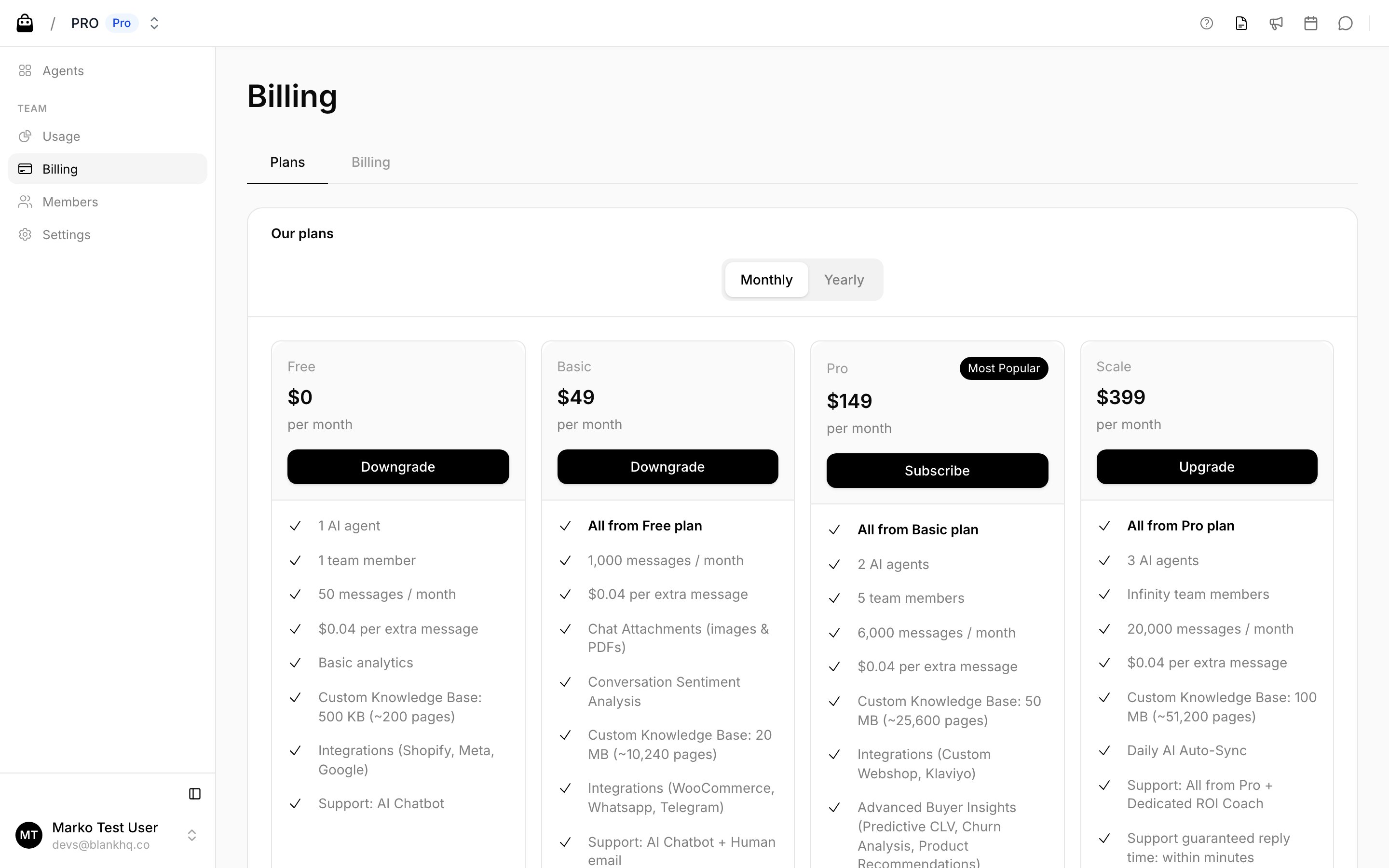
Message packs
Message packs let your agents keep answering after you’ve used your monthly message allowance, instead of stopping at the limit. A pack is a one-time purchase that adds a fixed number of messages to your team — no subscription change, no recurring charge.Buy a pack
- Open Billing and go to the Plans tab.
- In the Message Packs card, select a pack and click Buy.
- Complete the checkout (a Stripe checkout page, or a charge approval if you’re billed through Shopify). Your balance updates when you return.
How it works
- Messages within your monthly allowance count toward your plan as usual. Once the allowance runs out, your agents draw from your purchased messages.
- Purchased messages never expire and don’t reset monthly — whatever you don’t use stays available, even if you later downgrade your plan.
- When both your allowance and your purchased messages run out, agents stop answering until you buy a pack or upgrade your plan.
- The Usage page shows how many purchased messages you have left.