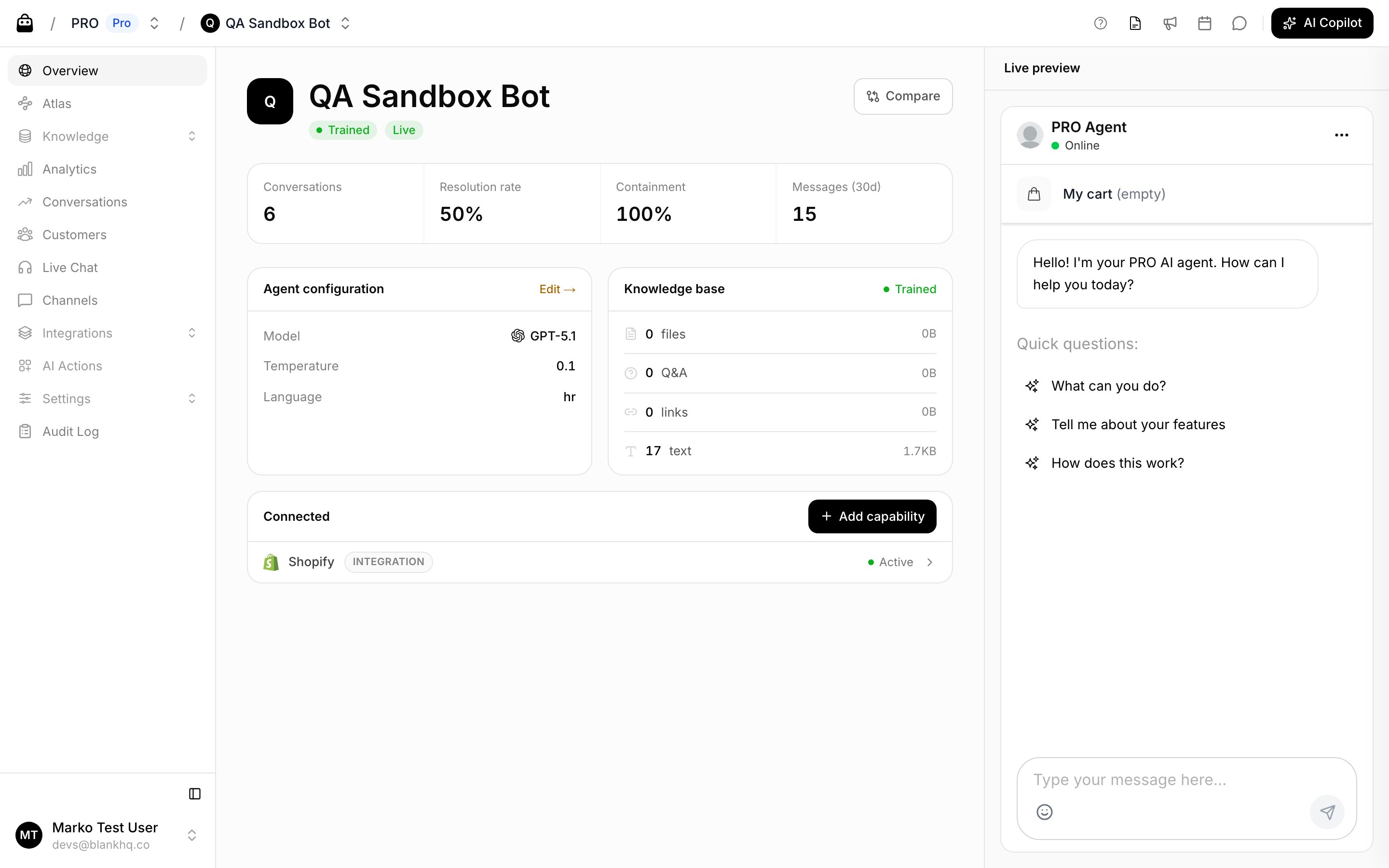
Overview is the first page in your agent’s sidebar. It gives you an at-a-glance summary of your agent and a live preview to test it in real time. Agent Overview

At a glance

The top of the page shows your agent’s name and status:
  • Training status: whether the agent is Trained or still needs training.
  • Live / Draft: whether the agent is publicly accessible.
  • Compare: opens the Compare view to test different models, temperatures, or instructions side by side.
Below that, four key metrics for the last 30 days:
  • Conversations: total conversations.
  • Resolution rate: share of conversations the agent resolved quickly.
  • Containment: share handled without human help.
  • Messages (30d): messages exchanged.

Summary cards

  • Agent configuration: the current model, temperature, and language. Click Edit to jump to Settings → AI.
  • Knowledge base: how many files, Q&A, links, and text entries the agent is trained on, with its training status. Click through to the Knowledge section.
  • Connected: the channels and integrations currently enabled. Use Add capability to connect more.

Live preview

The panel on the right is a live, working copy of your agent. Use it to test how the agent responds before and after changes, exactly as a customer would see it. If the agent isn’t answering the way you’d like, add the question and a clear, brand-specific answer in the Knowledge section, then retrain.

Example: make answers specific

If you ask “What materials do you use for your products?” and the agent replies with something vague like “We use high-quality materials,” add a Q&A with the exact answer, for example: “We use certified Canadian maple wood, processed in Quebec and shipped worldwide.”

Example: match your brand voice

If the agent opens with a generic “Hi. How can I help you?”, set a greeting that fits your brand in Settings → Chat Interface, for example: “Hi there. Looking for the perfect snowboard? I’ve got you covered.”