

Step 1: Create an Account
1
Visit Totebot
Visit Totebot.ai
2
Sign In
Click Sign In in the top-right corner.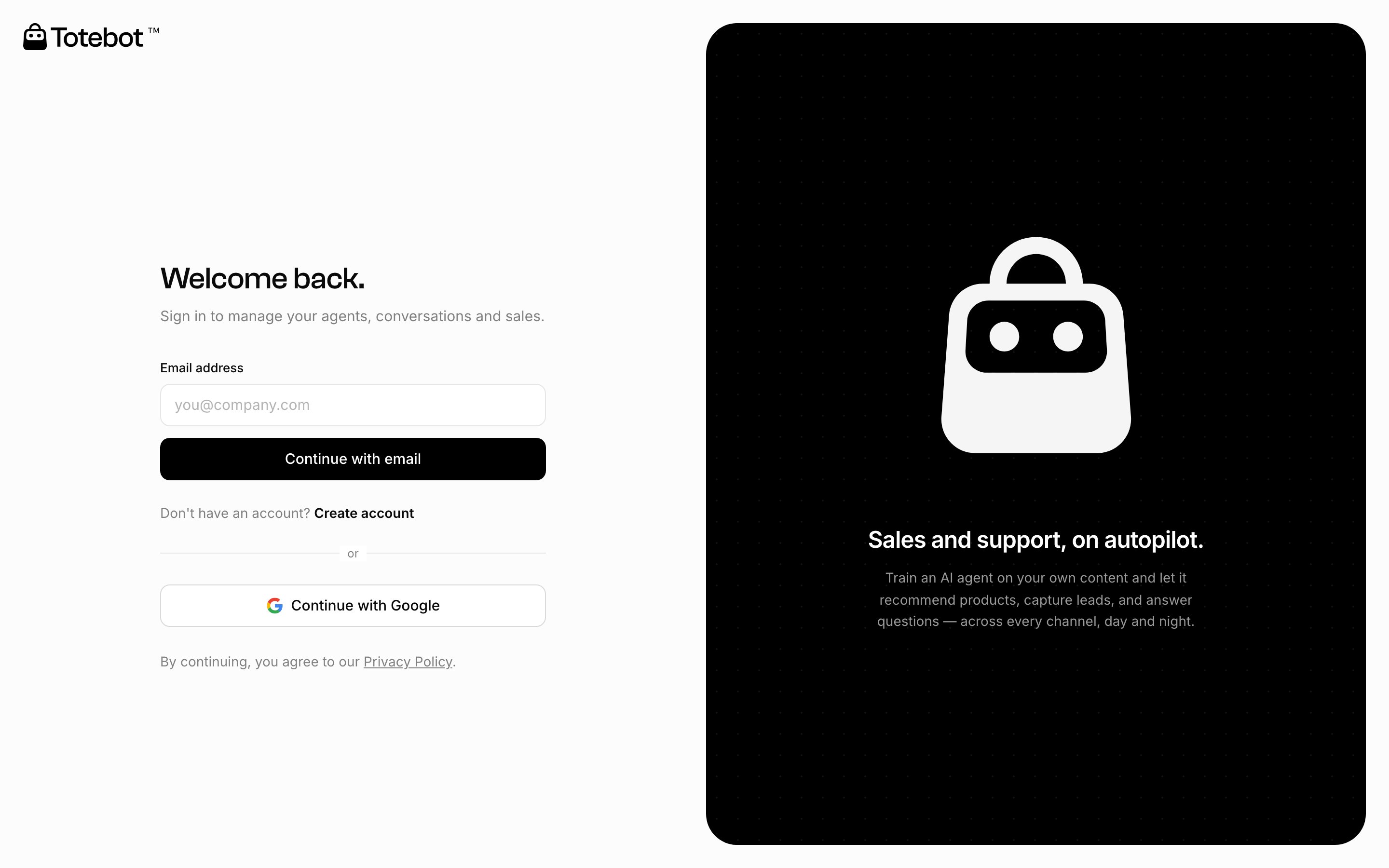
3
Choose Login Method
Choose to log in with your email and password, or sign in with your Google account.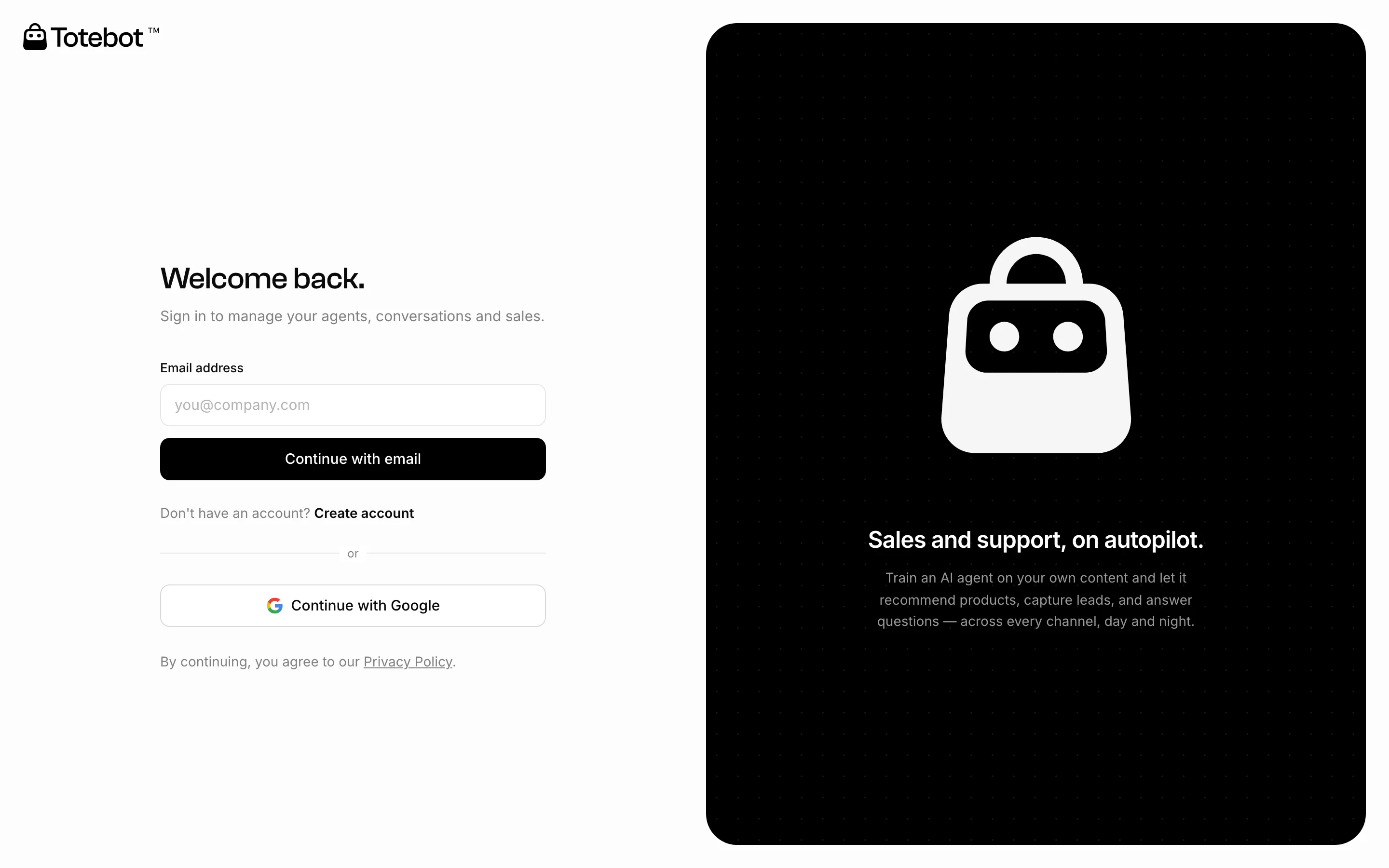
4
Create AI Agent
Start creating your first AI Agent by clicking the Create AI Agent button.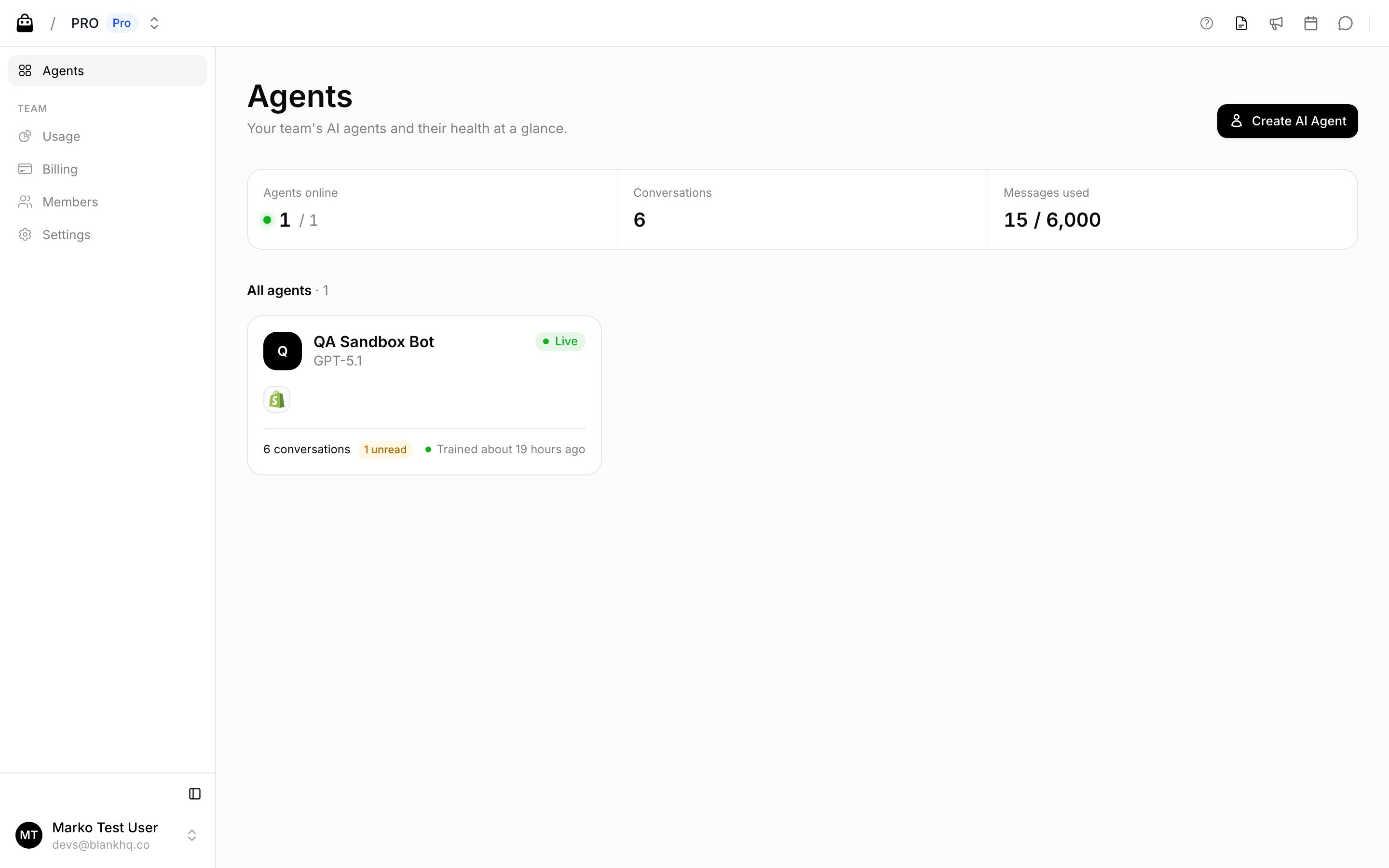
5
Select your business type
Choose what best describes your business, then click Continue.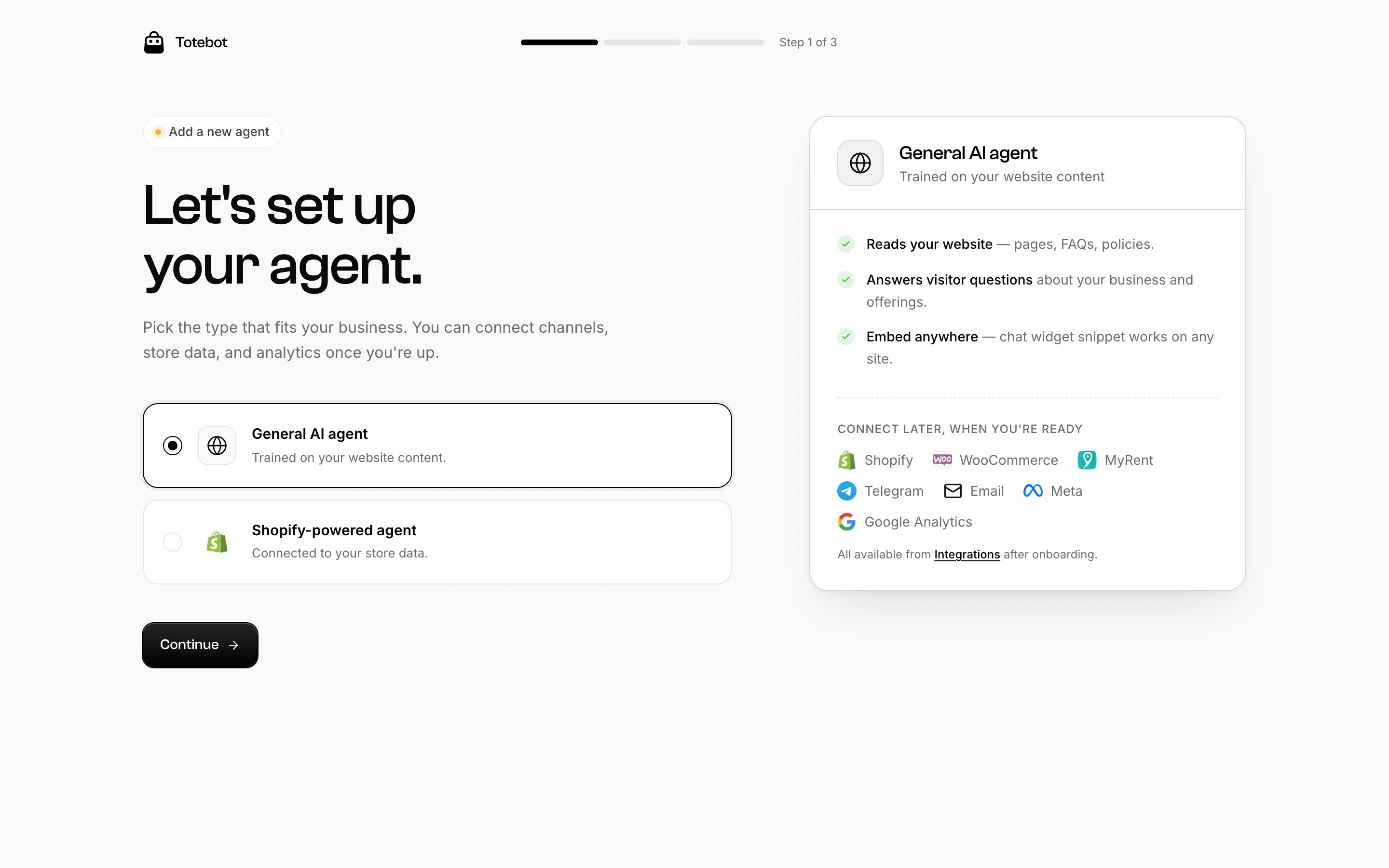
Step 2: Connect a Store or Channel
Connect your agent to where your customers are. This guide uses Shopify as the example, but the same applies to the other options:- Stores: Shopify, WooCommerce, or a Custom Webshop
- Channels: Web Widget, WhatsApp, Telegram, or Email
1
Enable Product Page Scanning
Let the agent scan product pages to enrich its answers. Click Connect Shopify.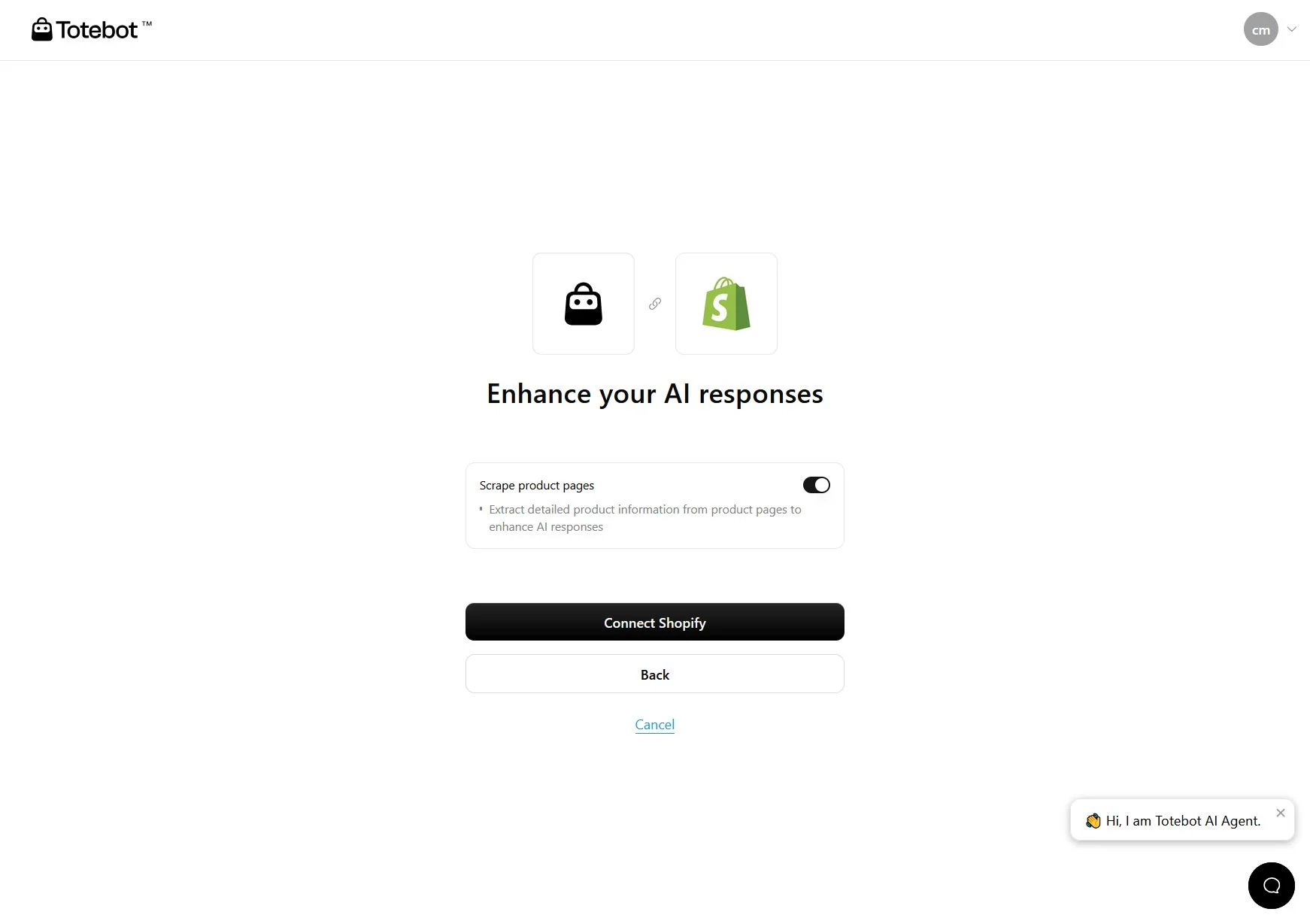
2
Install App
You will be automatically redirected to your Shopify store. Click Install.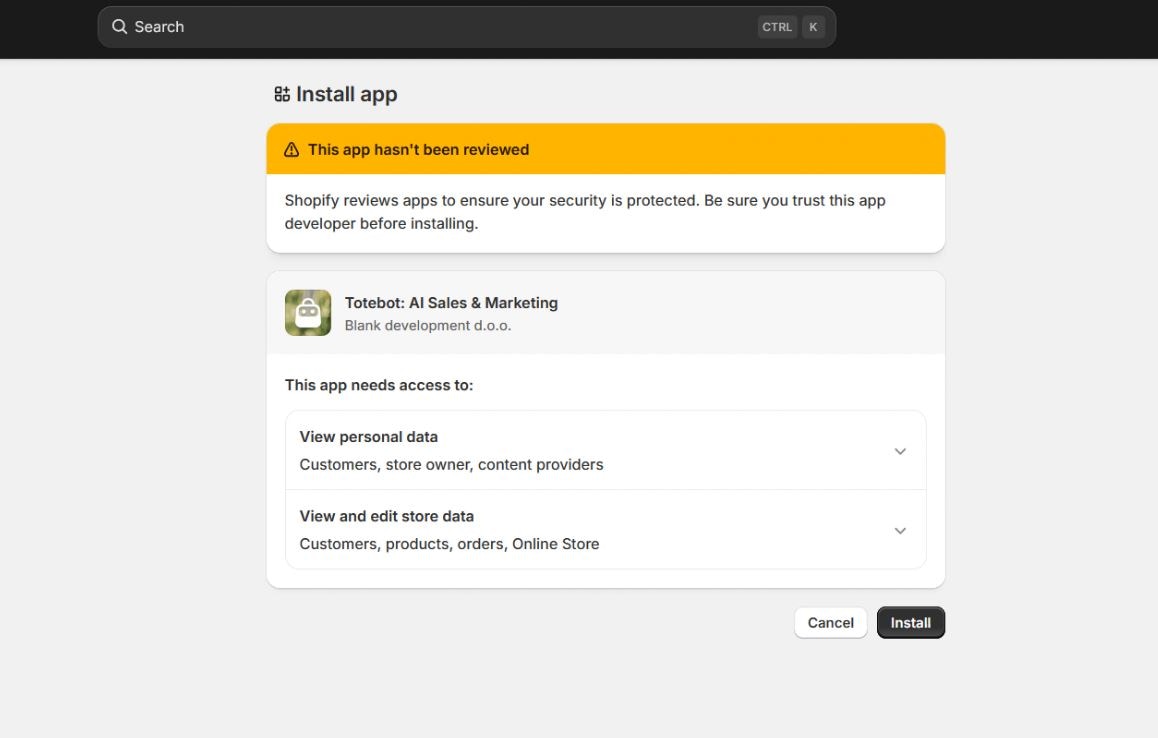
3
Confirm Connection
After installation, you’ll be redirected back to your Totebot dashboard with a confirmation message that your Shopify store is connected.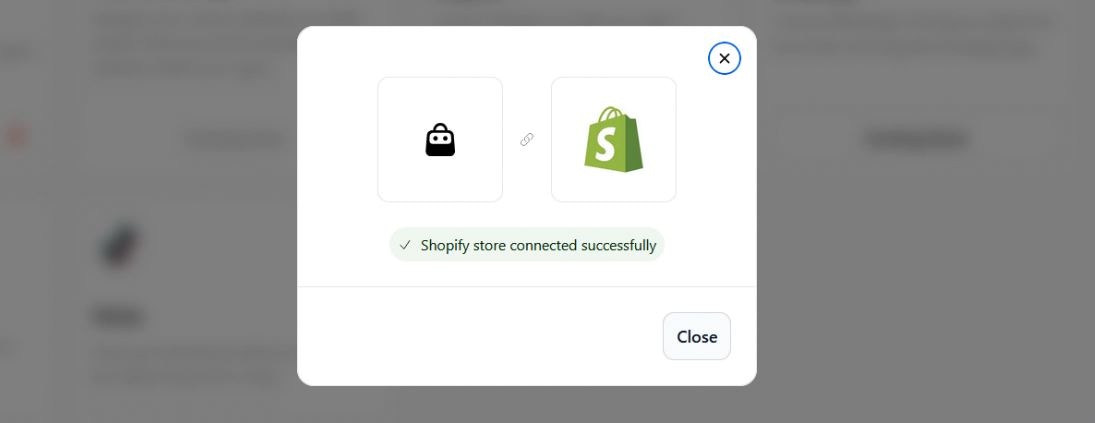
4
Verify Integration
You will land on the Integrations section of the Dashboard, where you’ll confirm that your webshop is already connected. The name of your agent will be automatically assigned based on the name of your webshop; however, you can change it at any time if needed.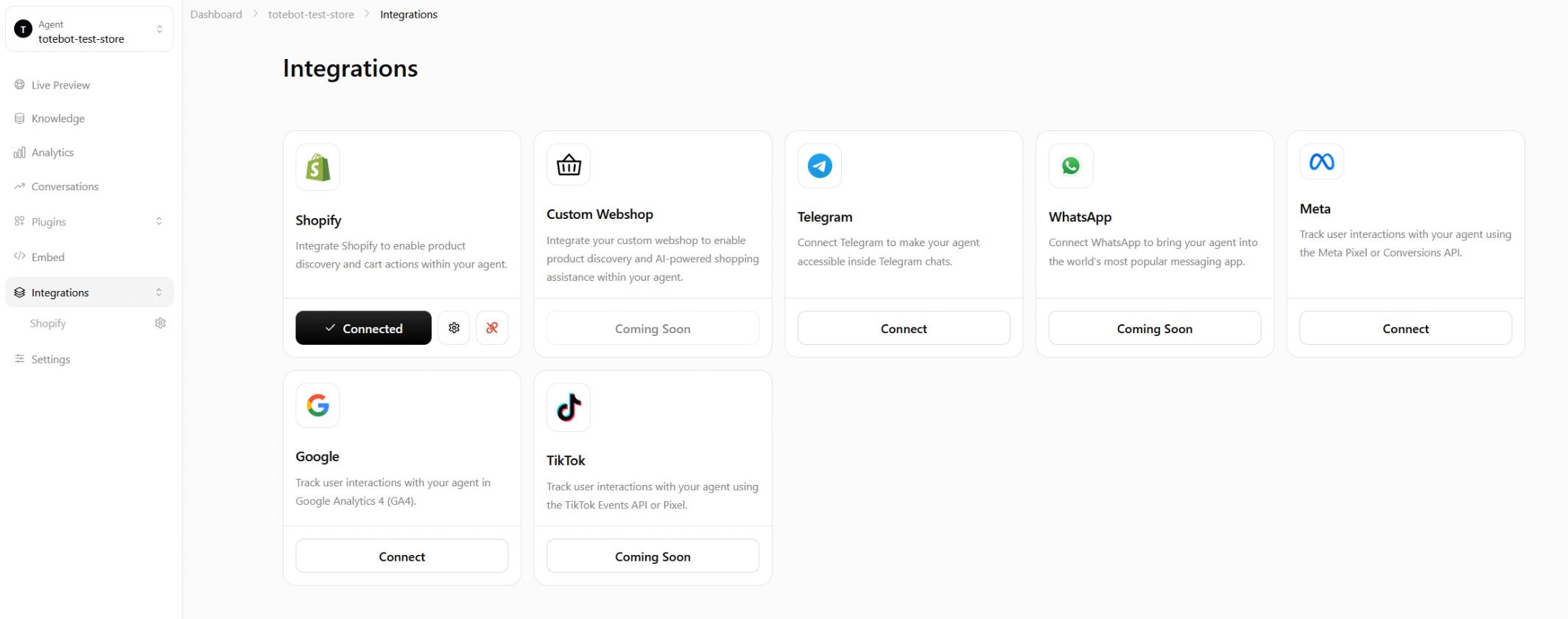
5
Check Status
If you click on the Settings gear, additional insights will open. Under Status, you can confirm once again that the Totebot app is enabled.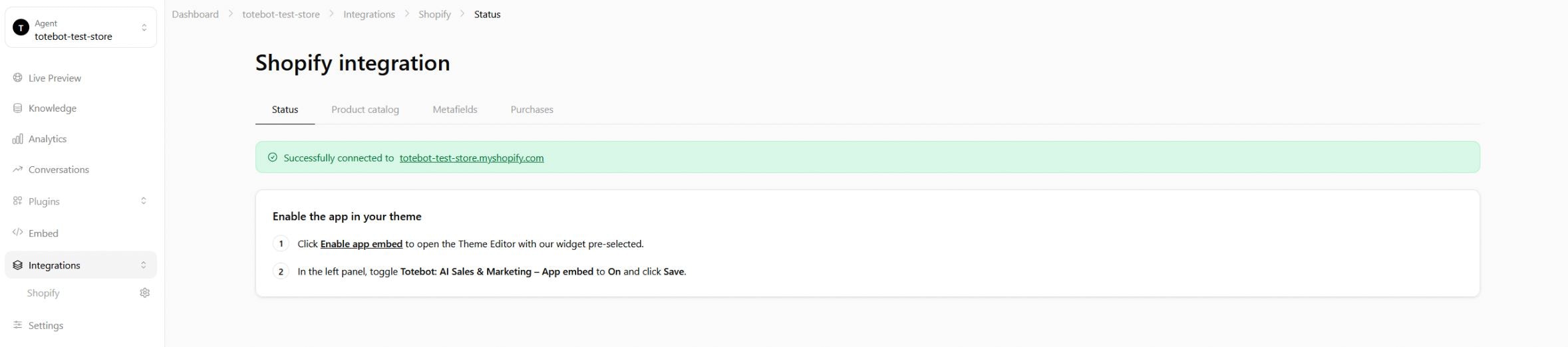
6
Verify in Store
Follow the provided link to open your Shopify store. You’ll see a confirmation that Totebot is active, along with an indicator in the upper-left corner, and the chat widget displayed and ready to use.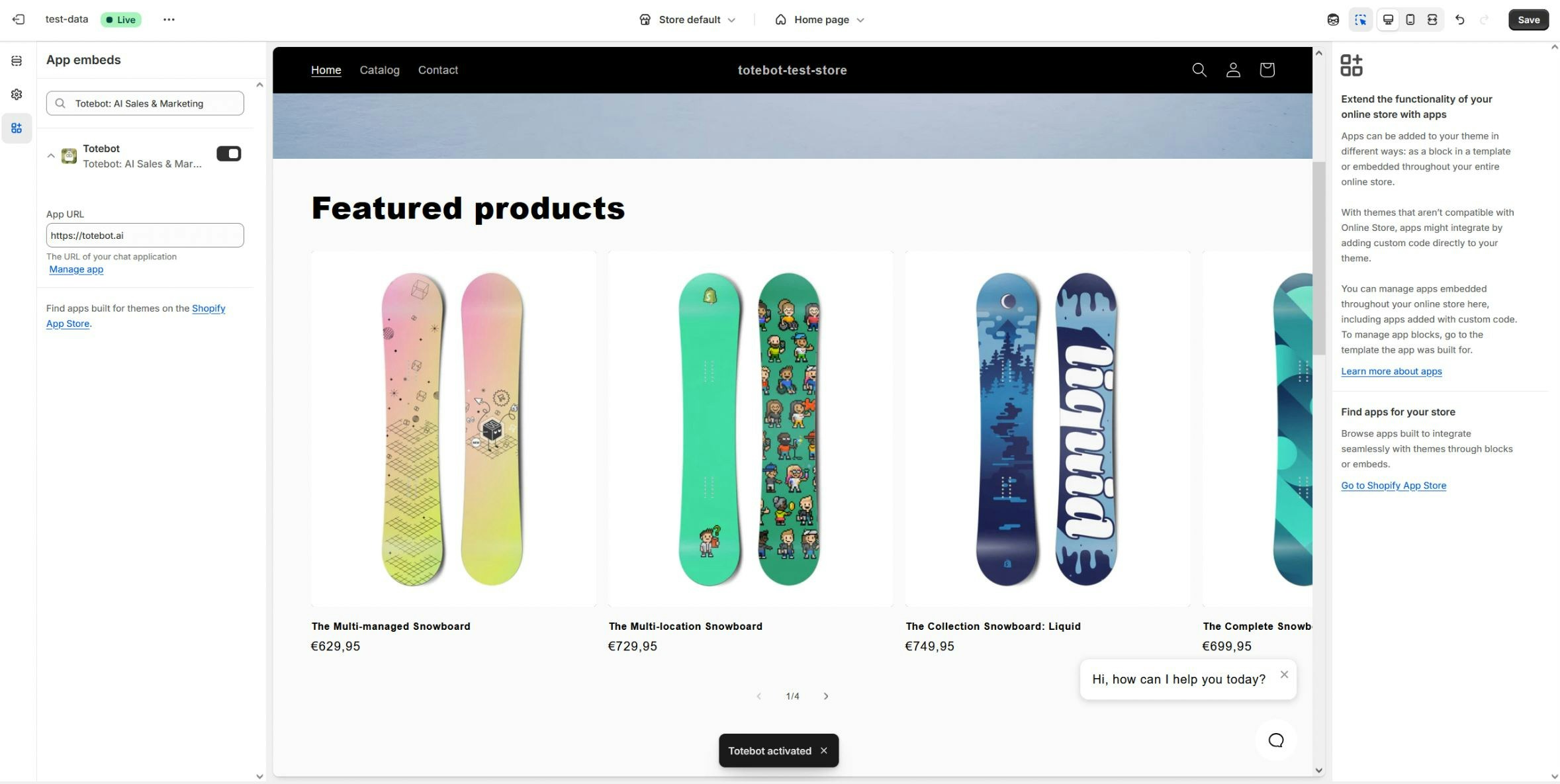
Step 3: Customize Your Agent
Start customizing by going to Settings, then selecting Chat Interface. In this section, we’ll cover only the basic customization options.General Settings
Agent Identity
Add an agent name and profile image
Visual Design
Customize bubble color, text color, and more, with a live preview on the right
Appearance Control
Choose when and how the chat bubble appears
Live Preview
See changes in real-time as you customize

Content Settings
- Welcome Message: Write your welcome message
- Timing: Choose how soon it should appear after a visitor lands on your site
- Suggestions: Add quick-start options to guide user conversations

Step 4: Knowledge
Your AI agent learns from the information you provide in the Knowledge section.1
Access Knowledge
In the left sidebar, click Knowledge and prepare the content for upload.
2
Add Content
Uploaded Files
PDFs, product catalogs, or user manuals
Manual Text Entries
Add and format content directly
Links
Add URLs to your store pages, blog posts, policies, etc.
FAQs
Include commonly asked questions with clear answers
3
Train the agent
Once you’ve added content, click Train agent to update your AI agent with the new knowledge.
You can keep adding and updating your knowledge base over time. The more relevant info you include, the smarter and more helpful your Totebot becomes.
You’re Ready
With these four steps, your first Totebot is up and running.Peak Performance Tips
Setting up Totebot is straightforward, but fine-tuning your Knowledge Base will make a huge difference in the quality of answers and customer experience. Here are some useful suggestions:1. Prepare Documents Carefully
1. Prepare Documents Carefully
Upload PDFs or other files that are clear, structured, and complete. Include product details, FAQs, policies, and guides. The better your documents are, the more precise the agent’s replies will be.
2. Add Relevant Links
2. Add Relevant Links
Insert links to your website, blog, or policy pages. Make sure they point to accurate, up-to-date content, and remove any outdated or broken links so your agent doesn’t serve old information.
3. Use Manual Q&A for Gaps
3. Use Manual Q&A for Gaps
If customers often ask questions not covered by your documents or links, add them manually as specific Q&A pairs. This ensures the agent always has an exact, brand-approved answer ready.
4. Monitor Analytics
4. Monitor Analytics
Check engagement, sentiment, and performance in the analytics dashboard. This shows how well your agent is performing and where it may need improvement.
5. Review Conversations Regularly
5. Review Conversations Regularly
Go through past conversations to see if customers are getting the right answers. Use the Revise Answer option to improve replies and help your agent learn over time.
6. Track Conversions
6. Track Conversions
Pay attention to how your agent contributes to sales, such as add-to-cart events, initiated checkouts, or generated leads. This helps you see the real business impact.
Next Steps
AI Actions
Automate tasks like sending emails and generating leads
Integrations
Connect Totebot to channels, stores, and tracking platforms
Analytics
Track performance and optimize results
Settings
Fine-tune your agent’s behavior and appearance