

How it works
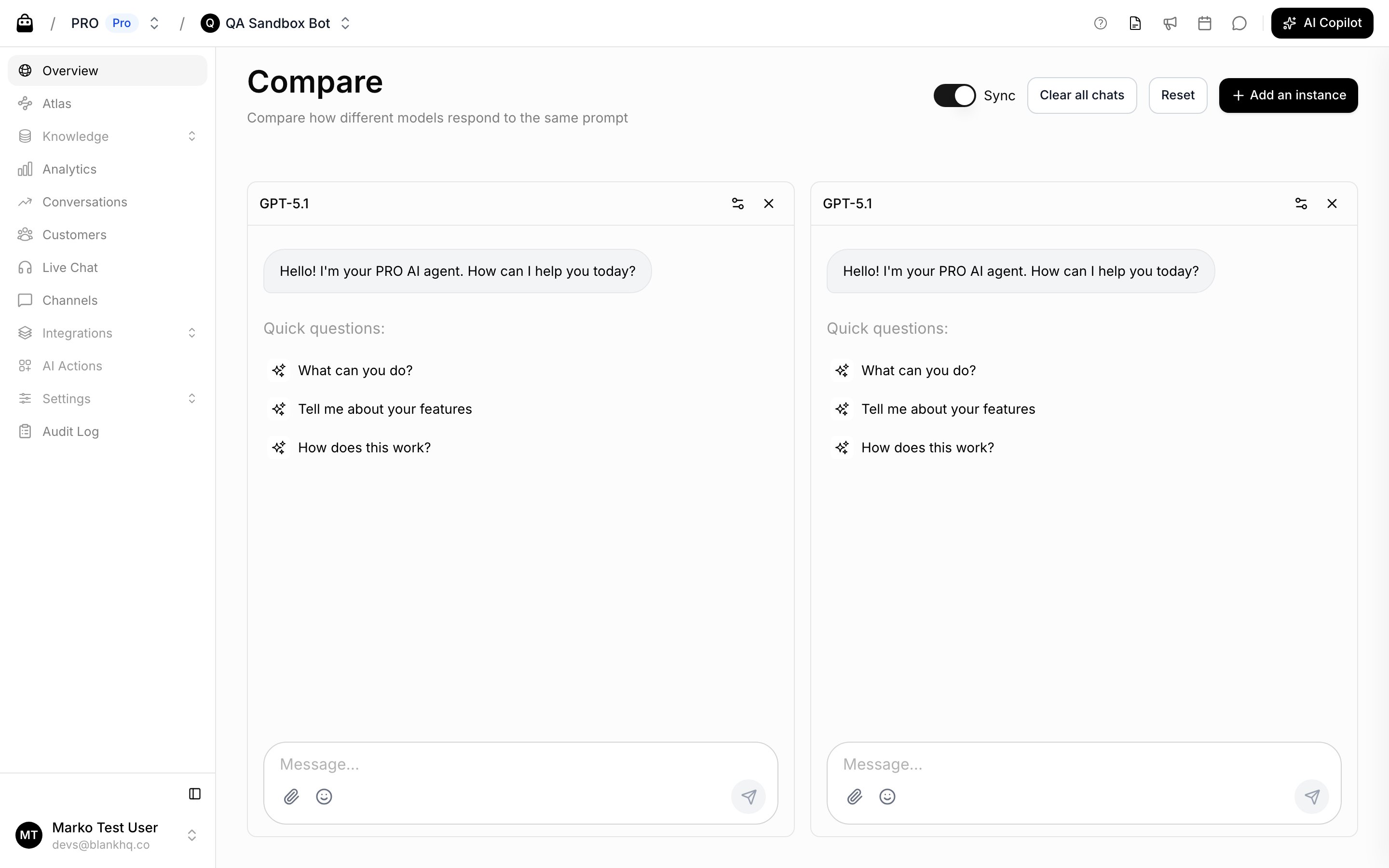
- You start with two instances side by side and can Add an instance for a third.
- With Sync on (the default), one input box sends the same message to every instance at once, so you can compare answers head to head.
- Turn Sync off to message each instance independently.
- Clear all chats resets the conversations; Reset restores the instances to your agent’s current settings.
Tune each instance
Click the gear on any instance to change, just for that column:- Model: pick any model available on your plan.
- Temperature: from focused (low) to creative (high). Some models use a fixed temperature.
- Instructions: try a different system prompt.
- Skills: toggle individual skills on or off.