

WooCommerce is available on every plan, including the free plan.
Step 1: Connect your store
1
Enter your site URL
Click Connect on the WooCommerce integration, enter your store’s URL, and click Authorize.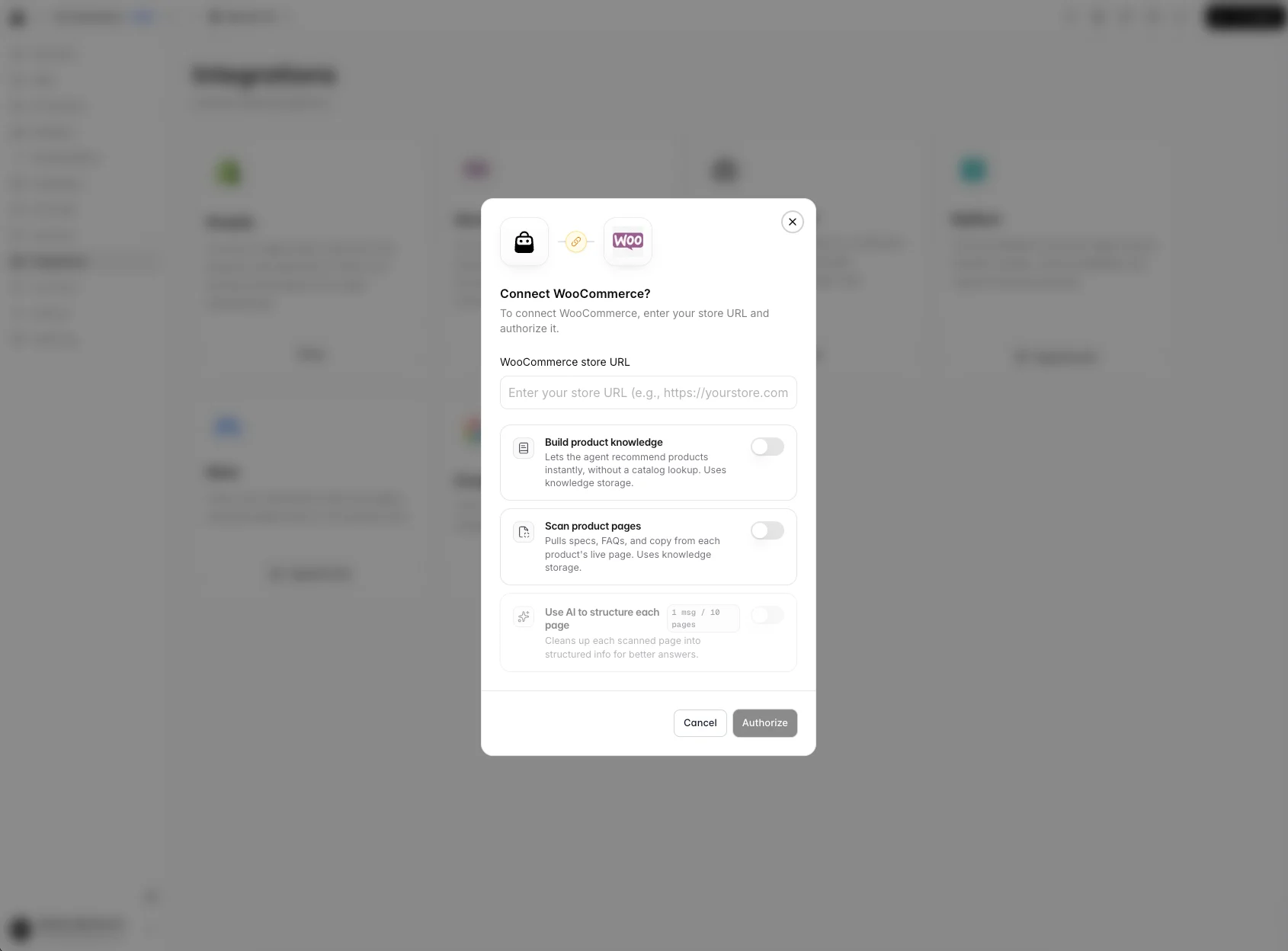
2
Approve access
You’ll be redirected to your WooCommerce store to approve the connection. Log in to your WordPress admin if prompted, review the access, and click Approve.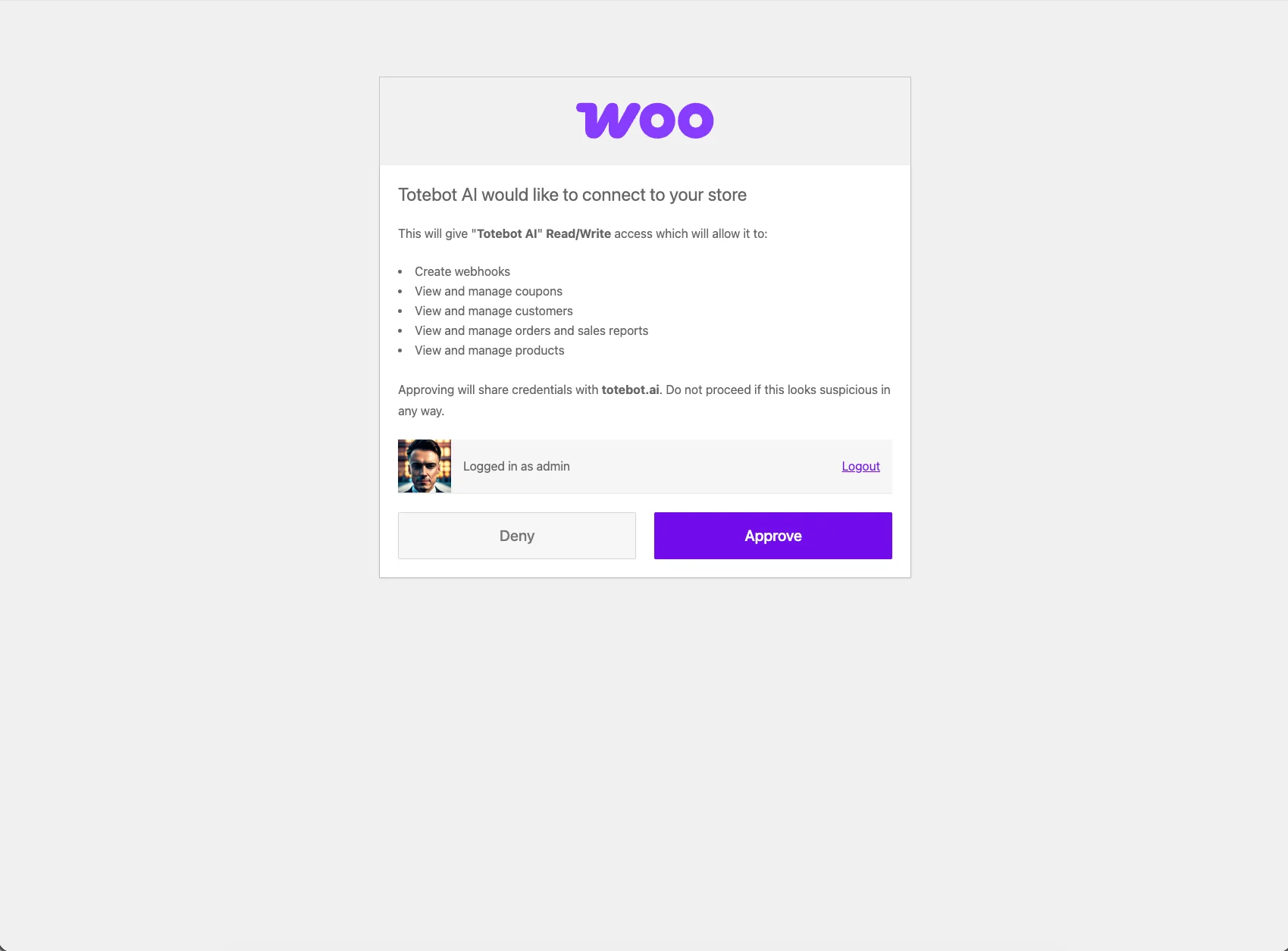
3
Return to the dashboard
After approval you’re redirected back to Totebot. Your product catalog starts syncing automatically, and webhooks keep it up to date when you add, change, or remove products.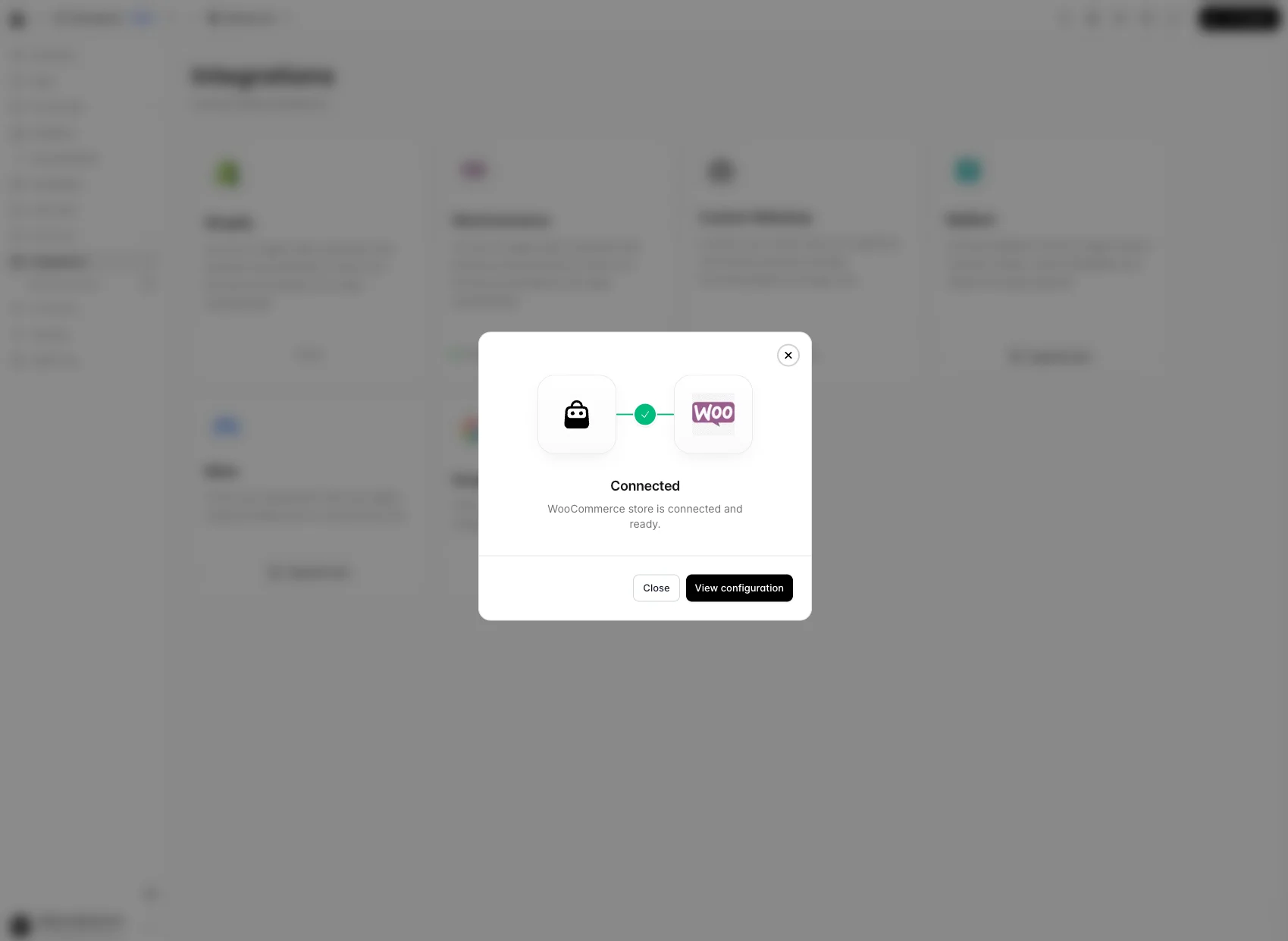
Step 2: Install the chat widget plugin
The plugin adds the Totebot chat widget to your storefront. Everything you need lives on the WooCommerce integration page: the Download Plugin button, the step-by-step, and your Agent ID.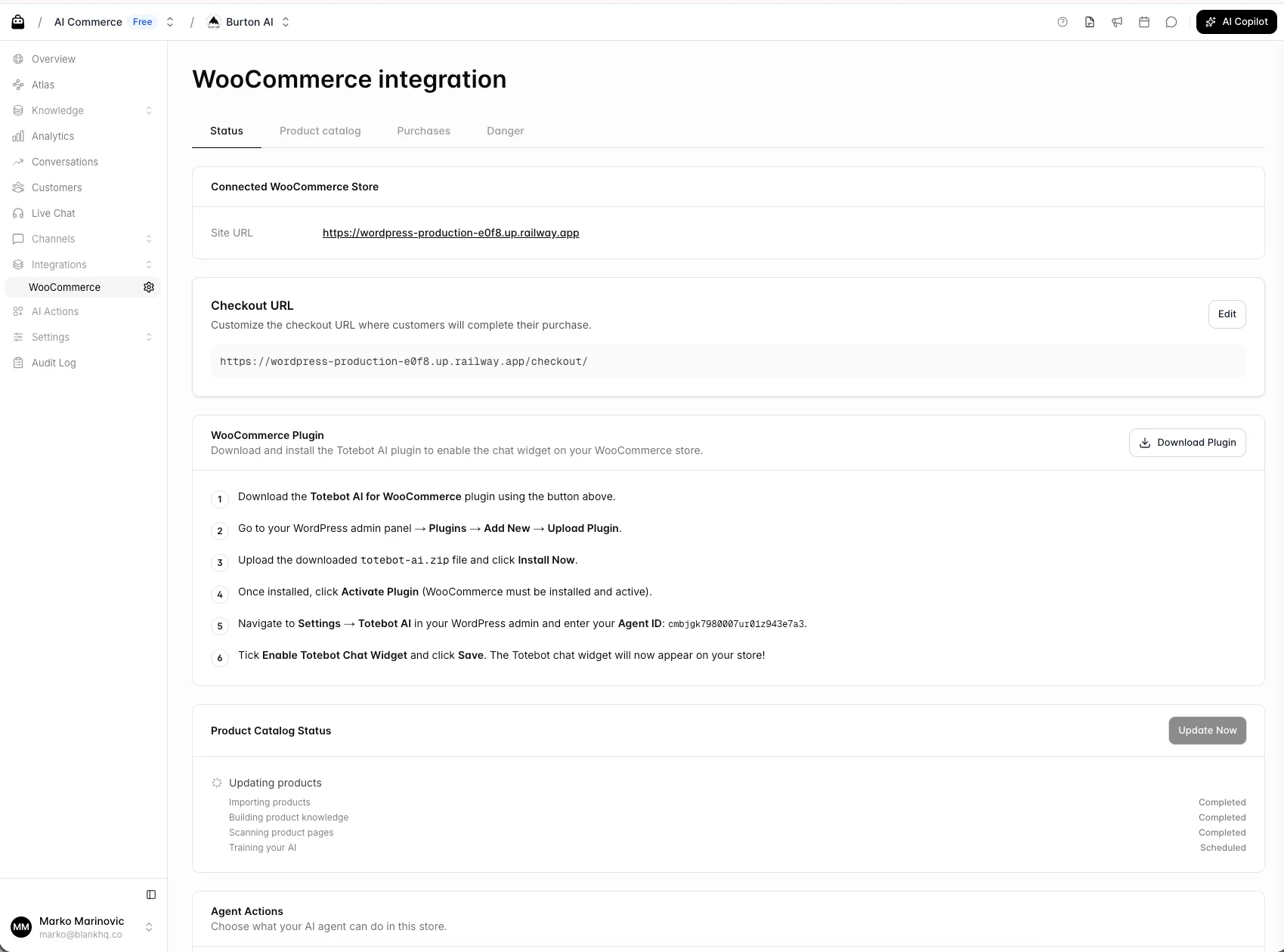
1
Download the plugin
On the WooCommerce integration page, click Download Plugin to get Totebot AI for WooCommerce (
totebot-ai-for-woocommerce.zip).2
Upload it to WordPress
In your WordPress admin panel, go to Plugins → Add New → Upload Plugin, choose
totebot-ai-for-woocommerce.zip, and click Install Now.3
Activate the plugin
Click Activate Plugin. WooCommerce must be installed and active on your site.
4
Enter your Agent ID
Go to Settings → Totebot AI in your WordPress admin and enter your Agent ID. You’ll find it on the WooCommerce integration page in your Totebot dashboard.
5
Enable the widget
Tick Enable Totebot Chat Widget and click Save. The chat widget now appears on your store.
What the agent can do
- Search and recommend products from your synced catalog, with prices, images, and availability.
- Show product cards in chat so customers can view details and jump to the product page.
- Add products to the cart directly from the conversation, so customers can keep shopping and check out without leaving the chat.
- Look up orders when you enable the order lookup tool on the integration page.
- Attribute purchases to conversations, so Analytics shows the revenue your agent generated.