> ## Documentation Index
> Fetch the complete documentation index at: https://docs.totebot.ai/llms.txt
> Use this file to discover all available pages before exploring further.
# Telegram Integration
> Connect Totebot to Telegram for direct messaging
The Telegram integration is a channel integration that allows your customers to chat with your AI agent directly through the Telegram app. This allows them to get answers without visiting your website and can help increase your conversion rates.
To access this integration, navigate to **Channels** → **Telegram** in your dashboard.
Telegram is available on **Basic**, **Pro**, and **Scale** plans.
## How to connect Telegram:
Click the **Connect** button in the Telegram integration section and follow the instructions.
Open the Telegram app and search for **@BotFather**.
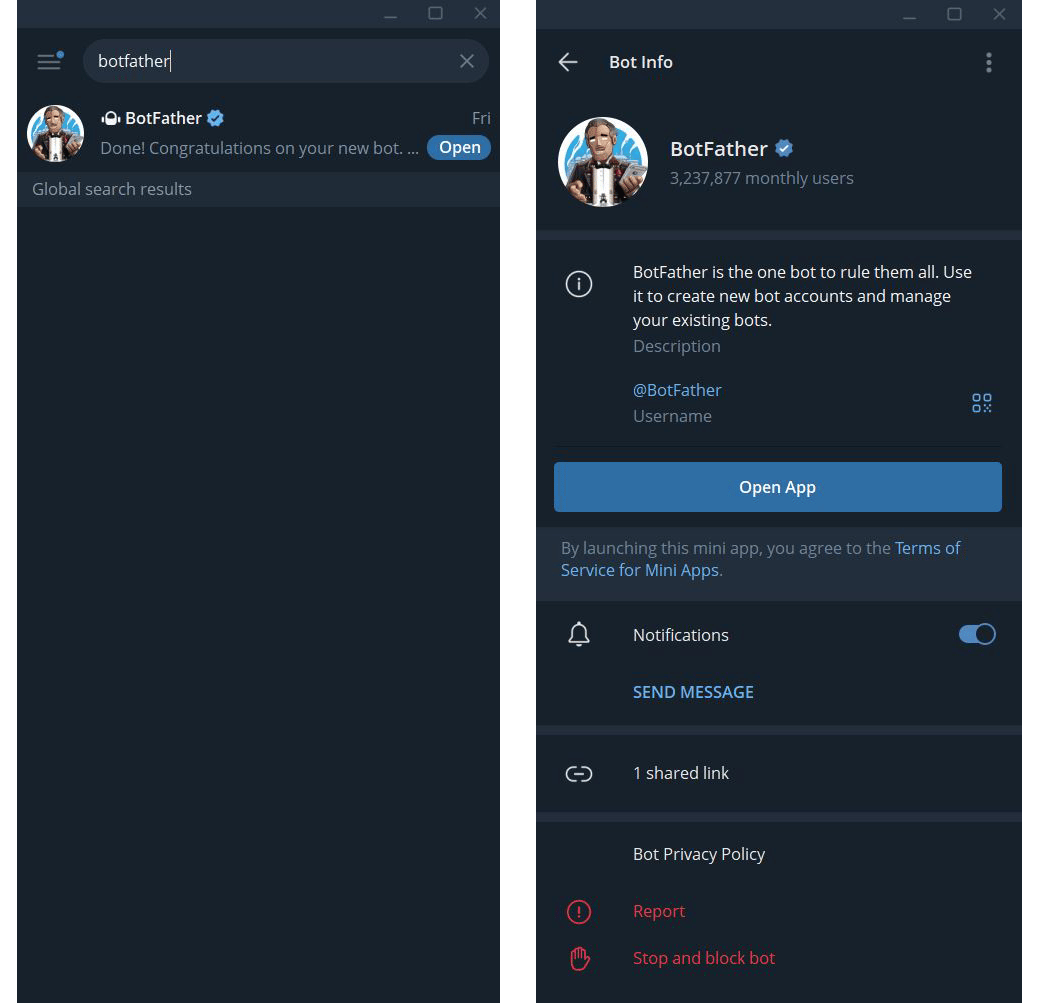 Start a chat with BotFather and send the command: `/newbot` and follow BotFather's instructions to create your bot.
 BotFather will provide you with a bot token and a username. Copy the bot token and username, then paste them into the corresponding fields in Totebot.
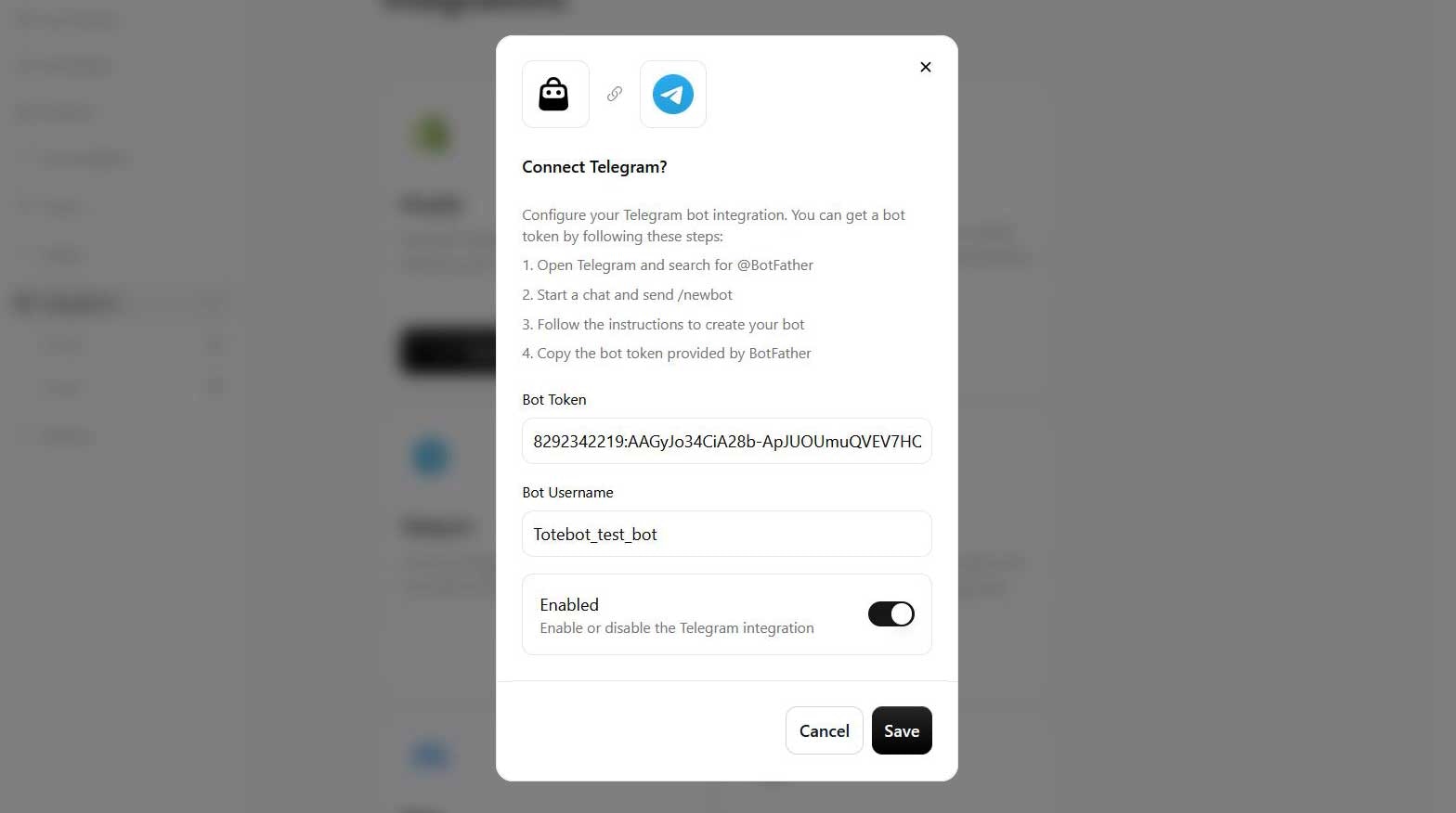 Save your settings.
Once saved, you'll see a confirmation that the connection succeeded.
Save your settings.
Once saved, you'll see a confirmation that the connection succeeded.
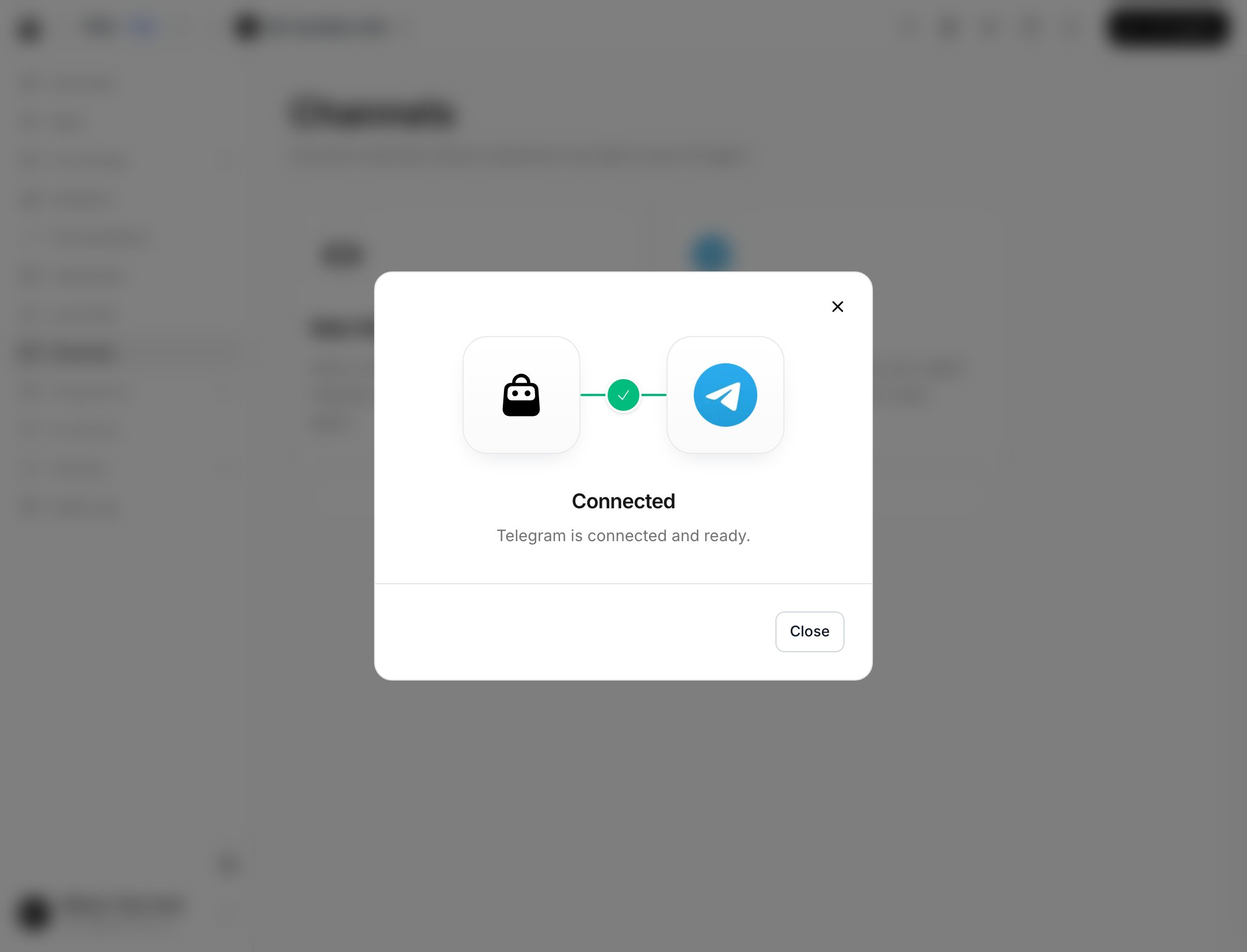 Your Telegram bot is now connected and ready to communicate with customers.
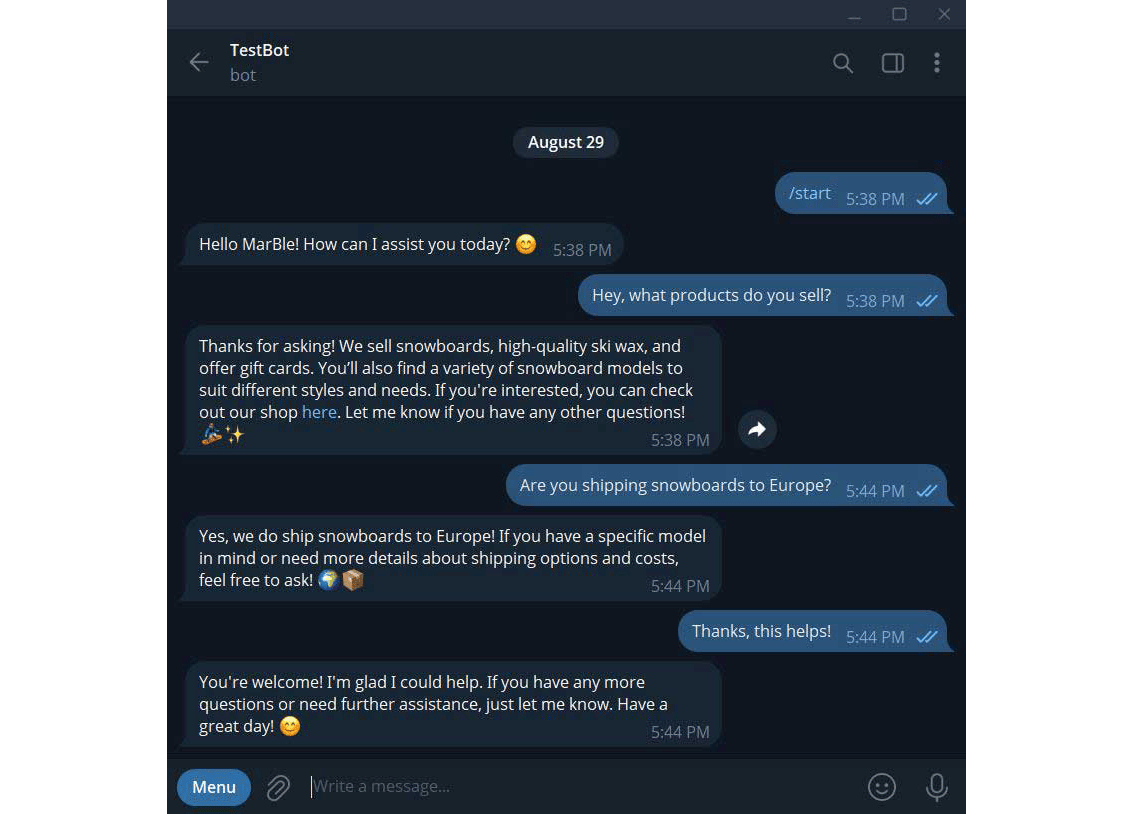
To test your bot, open the Telegram app, type the bot's name in the search bar, and start a conversation.
Your Telegram bot is now connected and ready to communicate with customers.
To test your bot, open the Telegram app, type the bot's name in the search bar, and start a conversation.